run fivecoding agents.know which oneneeds you.
A native macOS terminal, built for running
many coding agents at once.
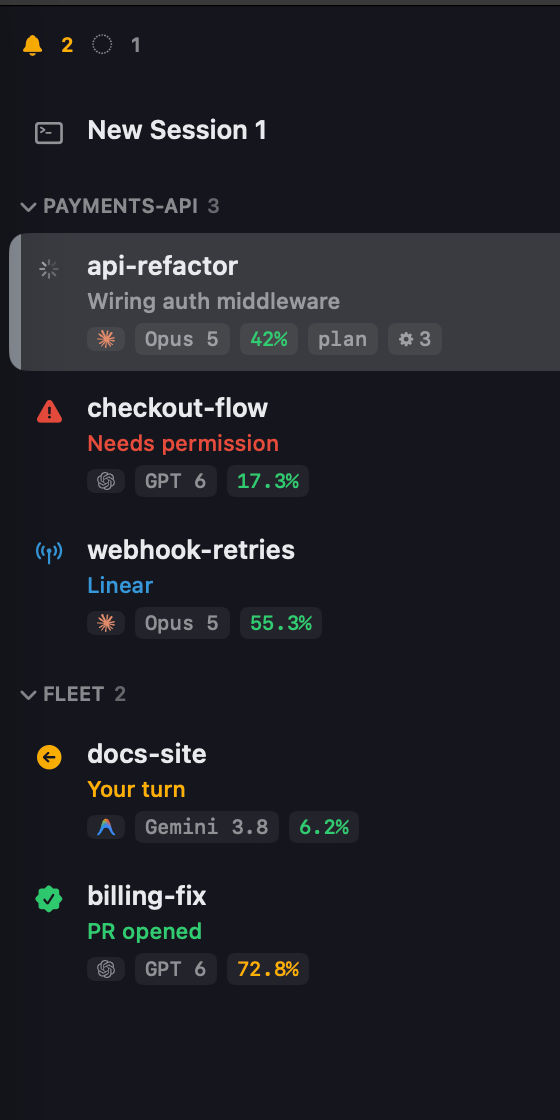
One window. Every session’s status on the left, the one you are in on the right.One row per session, and a colour that says what it wants.
the colour is the interface.
needs
permission
A tool call is waiting on you. Approve or deny from the notification.
your
turn
It stopped and handed back. ⌘⇧J jumps to the next one.
question
You have been asked something. Violet means only this.
mcp in
flight
A server call is running. Nobody is blocked on you.
pr
opened
It finished, and shipped something.
working
Grey means nothing needs you. Most of the fleet is grey.
Six colours. You learn them once and never read a label again.
Live status comes from Claude Code, Codex and Antigravity, in any mix. Anything else — a build, a dev server, a plain shell — runs as an ordinary session.
tabs stop
working at
four agents.
Once every tab is an agent working on something, the tab bar tells you nothing. You cycle windows hunting for the one stuck on a permission prompt — and the other five sit idle while you look.
The cost is not the hunting. It is the five that stopped and you did not notice.
one window
However many agents you have running, they are all in one place, and you can see all of them at once.
⌘⇧J
Jump straight to the next session waiting on you. The one shortcut that changes how you work.
≤24 chars
Plain English under every working session — “wiring auth middleware”, not “Running…”.
and the rest of it.
everything else Fleet does, without a card gridPeek at a session’s recent conversation without leaving the one you are in.
A session reporting “working” with no output gets flagged as stalled.
Group by project, collapse, drag to reorder, colour anything.
Menu-bar extra and Dock badge count what needs you, even unfocused.
Approve and Deny buttons on permission prompts. Per-session mute.
⌘⇧P — every action, searchable, each with its shortcut.
⌘⇧F searches every session’s scrollback at once, with a hit count each.
⌘↩ zooms out to a live tile per session. Click one to land in it.
MesloLGS NF ships inside, so your powerline prompt renders on first launch.
Fleet Dark, Snazzy, Solarized Light — and the theme colours the whole app.
Drop an image or file on a session and it is pasted straight in for the agent to pick up.
Open URLs and file paths straight out of the scrollback. Anything but a web link asks first.
CPU, RAM, network and process count across the fleet, with a per-session breakdown.
⌃` — a scratch shell in a drawer, for the command the agent asked you to run yourself.
Start any agent you have in a folder you pick, or from a saved profile, for the many-worktrees workflow.
Reopen where you left off — optionally resuming the agent conversation too.
⌃⌥⌘↩ from anywhere spawns a session running whatever you type.
Download and open it. Nothing to sign into, nothing to configure first.
All three, in one window. Fleet reads each one’s own transcript, so there is nothing to set up per agent.
Status is read from the agents already running on your machine. Nothing extra to set up or pay for.
Signed with a Developer ID and notarized, so it opens normally. An update installs only if it is signed by the same team.
zsh, fish, bash, your prompt, your dotfiles. Fleet spawns it exactly as it is.
Transcripts, status files, the branch you are on: all read on your Mac, to fill in the sidebar. None of it is uploaded.
Anonymous counts and nothing else — the format has no field a path, a branch or a line of output could fit in. One switch turns it off. Read the policy
If a release breaks something for you, the previous one is still on the changelog.
Hit a problem, or want something Fleet does not do yet? help@fleet-terminal.app — it goes straight to the person who builds it.
There is a Discord as well — help, ideas and release notes, with everyone else running it.
Fleet is free and stays free. If you want to chip in anyway, there is a shop — and you get something back for it.